User guide
Backup & estate
Two encrypted files, same cryptography, different jobs: one for your own bad day, one for someone who has to open this without you.
Screenshots are from the iPhone app. Everything shown on this page works the same way in the Android app, drawn in Android's own style.
Why there are two
People read the feature list and assume one of these is redundant. They are not:
| Encrypted backup | Estate Export | |
|---|---|---|
| For | You, on a new or wiped phone | Someone who inherits this |
| Opened with | Abditex Bullion | Any PDF reader, plus the passphrase |
| Assumes | You still have the app and the passphrase | Nothing — not even that the app still exists |
| Tier | Free | Pro |
Encrypted backup Free
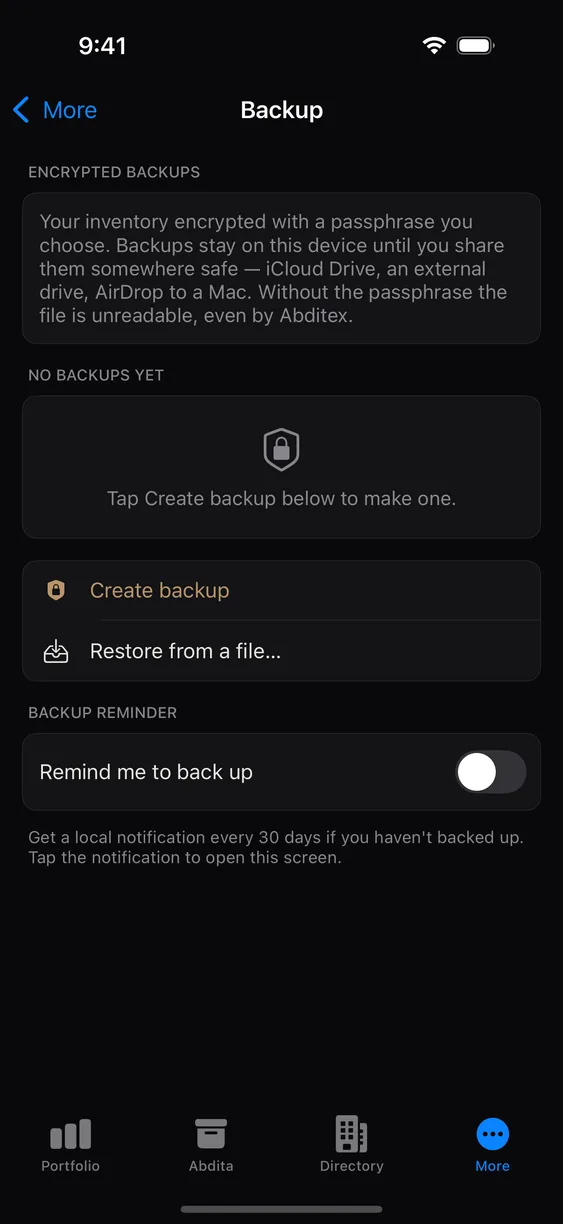
More ▸ Backup ▸ Create backup. Choose a passphrase for this backup, type it twice (or tap Generate a passphrase), and save the file wherever you keep important things. The backup holds everything — holdings, Abdita, tags, photos, price snapshots — encrypted with that passphrase before it is written.
Every backup asks for its own passphrase. Use the same one every time or a different one: each file opens only with the passphrase it was made with, and the app keeps nothing — no key, no passphrase — once the file is written.
It is entirely on-device. No network call is made, and no copy goes to us.
Restoring on a new phone
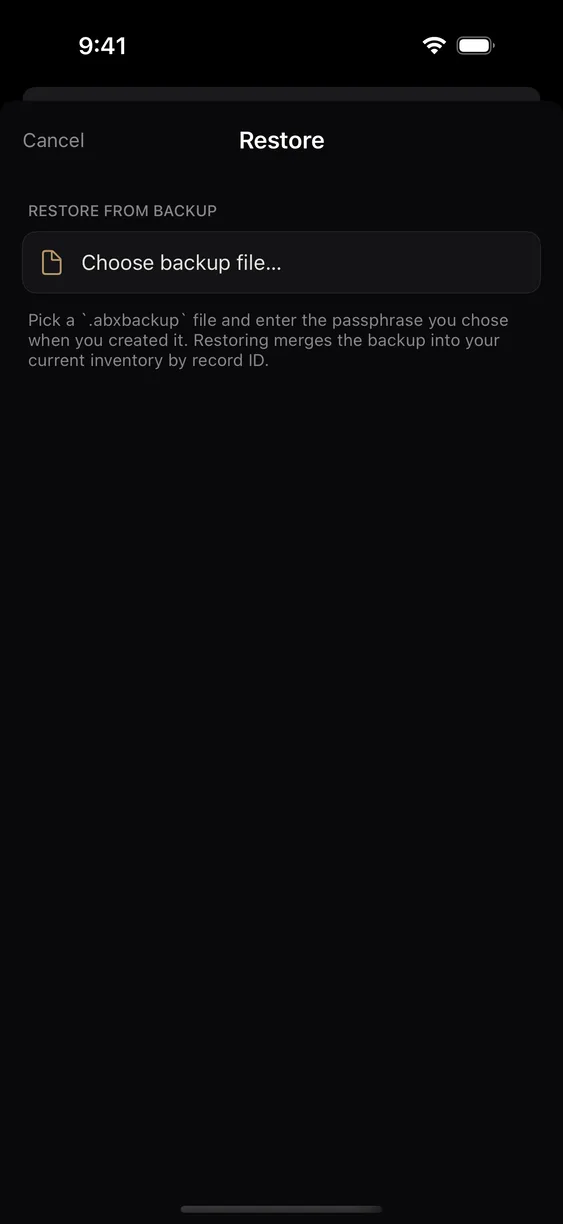
- Install Abditex Bullion on the new device.
- More ▸ Backup ▸ Restore from backup.
- Pick the file and enter the passphrase.
- Type RESTORE to confirm. Restoring replaces what is on the phone now, so the button stays off until you have typed it.
There is no account to sign into, because there is no account. The file and the passphrase are the whole recovery story.
Lose the passphrase and the backup is gone
We cannot reset it, recover it, or help you guess it. There is no back door, and that is exactly why the file is safe to keep in cloud storage. Write it down and keep it somewhere separate from the backup itself. If you use a different passphrase for different backups, note which goes with which: the app cannot tell you which passphrase a file needs.
Where the file goes Free
Anywhere you like. The system share sheet writes it to Files, AirDrop, or any cloud service on your phone. The app can also write it straight into your own cloud storage without the share sheet — iCloud Drive on iPhone, Google Drive on Android.
All of that is free. It used to sit behind Pro; it costs us nothing per user, and a gate that recovers nothing is just a gate. The file is encrypted before it leaves the app, so your cloud provider stores something they cannot read.
On iPhone the app also keeps the files it makes. Every backup goes first into the app's own folder, which the Files app shows under “On My iPhone”, and stays there until you delete it from the Backup screen. So does the snapshot the app saves of your current data just before a restore. They are encrypted, and each opens only with its own passphrase, but they are not tidied away for you. On Android the app keeps no copy: the file goes only where you pick, and so does the snapshot before a file restore. Restore from Google Drive and that snapshot is uploaded to your Drive beside the backup instead, under the passphrase you typed for the restore.
Three things that sound alike
Two of these remind you. One replaces you. Confusing them is the expensive mistake on this page, so here they are side by side:
| What it does | Tier | |
|---|---|---|
| Backup reminders | Nags you to back up. "Remind me every 30 days." You still make the backup. | Free |
| Unattended backup | Backs up without you. On a schedule, while you sleep. You make nothing. | Pro |
| Passphrase check-ins | Nags you to type your passphrase every few months, so you still know it years from now. | Pro |
Backup reminders are a local notification your own phone schedules; nothing about them touches the network. We would rather every user backed up than earn anything from the ones who do not.
A reminder is not a backup
If you have reminders on and unattended off, nothing is backing you up — your phone is asking you to. The difference matters on the day you find out, which is the worst possible day to find out.
Unattended backup Pro
More ▸ Backup ▸ Automatic backups. Turning it on asks you to choose a passphrase for automatic backups, typed twice or generated; that is the only place a passphrase is set ahead of time. Your phone then makes a backup, uploads it, and then re-downloads its own file and opens it to confirm it still works. It happens while the phone is charging and on Wi-Fi — your operating system decides exactly when, so this is a habit rather than a timetable.
That last part is the part worth paying for. Anyone can have a file. Unattended backup is the only feature here that tells you the file still opens.
How it works without leaving your passphrase on the phone
A backup that needs you to type a passphrase cannot happen while you sleep. So the file is locked twice, with two independent locks:
- The passphrase you set when you turned it on — on every backup file, always.
- A split key — half on this device, half on our server. Neither half is anything alone. They meet only on your phone, in memory, for the few seconds a backup takes.
Your passphrase always opens a backup
Every file carries the passphrase lock — the ones made while you slept included. Restoring never depends on our server, and never depends on the phone that made the file. If we vanish tomorrow, or your phone goes into a river, your passphrase and your file are still the whole recovery story. The split key is how a backup happens without you; it is never the only way in.
While it is on, your phone keeps its half of the key; the backup key locked with that passphrase, and a second copy of that lock used only to check downloaded files against; the same key locked again under the two halves together; a secret that tells our server which install is asking; the identifier of that enrolment; and the time it was set up. None of it opens a backup without something the phone does not hold. Turn it off and the phone deletes all of it; turn it on again and you choose a new passphrase and get a new key. That is also how you change the passphrase. Backups already made keep opening with the passphrase they were made with.
The honest cost, and we would rather write it here than let you find it: while unattended backup is on, our server learns when and how often this phone backs up, because every scheduled run asks us for our half. Not what is in the backup, not how big it is, not how much you own — the timing, and only while the feature is switched on. We keep no list of your backups. Turn it off and we delete our half — and if our server cannot be reached at that moment, your phone still deletes its own, and our half is removed after 180 days with no request from this install.
What our half is worth to someone who steals it: nothing. It is a random number. Combined with your cloud provider's copy of the file, still nothing. It only becomes useful next to the half on your phone — and anyone holding that has your unlocked phone, which opens your live inventory anyway.
Passphrase check-ins Pro
Unattended backup quietly removes the thing that kept its passphrase in your memory: typing it. So every three months or so — an interval you can change — the app asks you to type it and checks it against the key already on your phone. It asks only while unattended backup is on, and only for that passphrase: the ones you give backups you make yourself are never stored, so there is nothing to check them against. No network call is made on that path, and a test in our source asserts that. We never learn whether the prompt fired, whether you got it right, or whether you switched it off.
Two years of not typing something, against the one path that recovers everything, is a failure waiting for the worst possible moment.
Estate Export Pro
More ▸ Estate export. Produces a single encrypted PDF designed to be opened by someone who has never used this app, possibly years from now, possibly after we no longer exist. It carries a cover page explaining what the document is, and an embedded script that can recover the contents without any Abditex software at all.
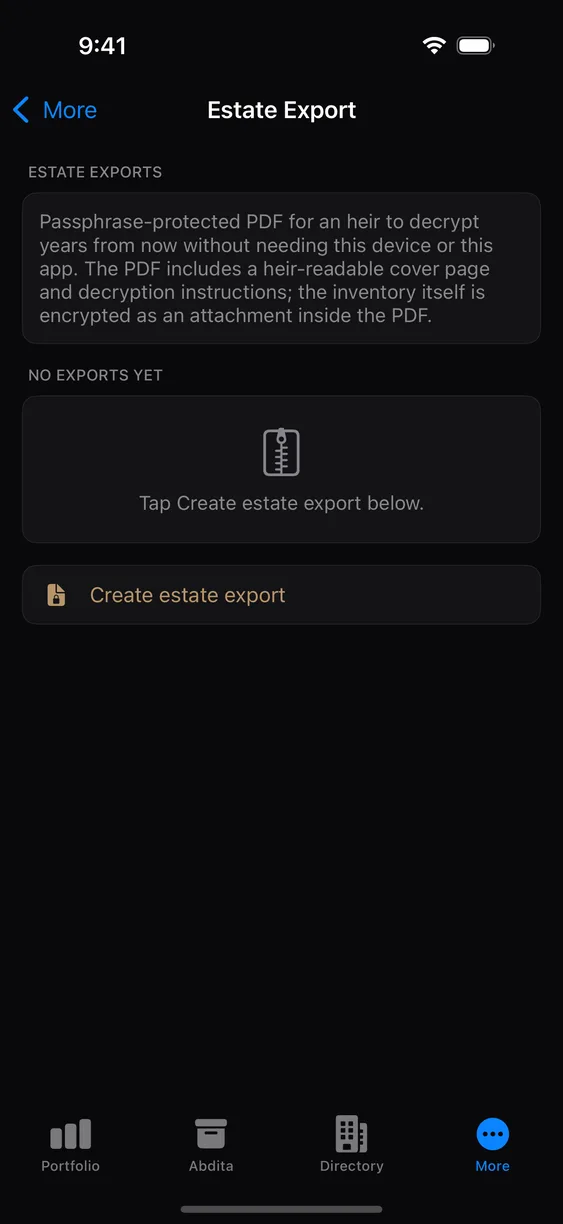
The cover page is readable without the passphrase, deliberately. An heir who finds the file needs to know what it is and what to do; a completely opaque file gets deleted. The cover shows the document title, the export date, and the names of the Abdita included — so name your Abdita with that in mind. Your holdings themselves are in the encrypted portion and are not readable without the passphrase.
Give your heir the passphrase through a different channel than the file — a sealed letter with your will, an attorney, a safe. A passphrase stored next to the file it opens is not a passphrase.
What is never in either file
Your sharing identity keys and your demo-mode PIN are excluded from both. A restored backup is your inventory, not your device's cryptographic identity — which is why restoring does not silently reattach you to other people's shared Abdita.